

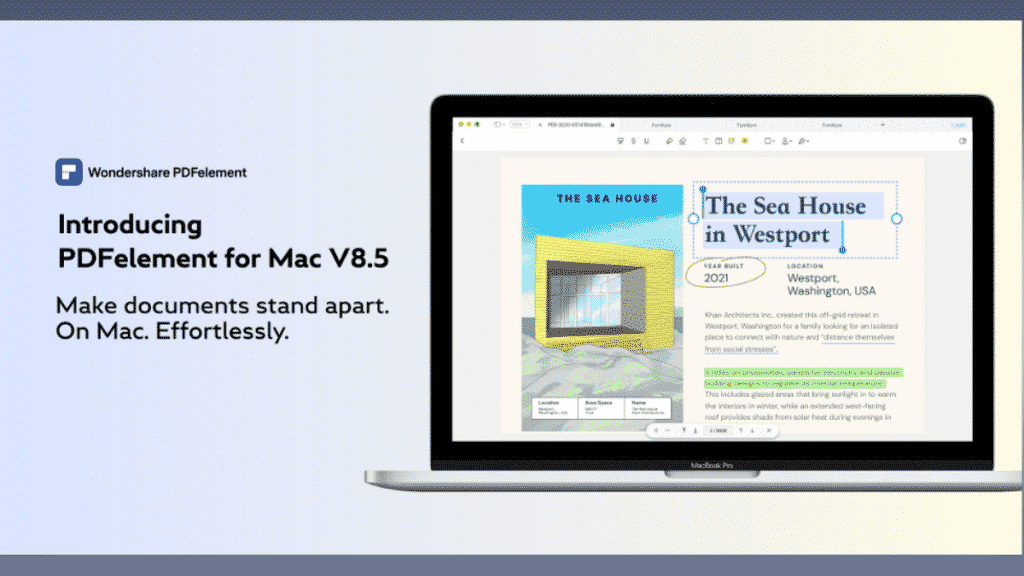
For the general public, there may be familiar with files with PDF extensions, even many are familiar with the software with PDF reader features such as Adobe Reader. However, it seems that very few people understand the meaning or purpose of creating this file, given that computing already exists in Microsoft Office.
The use of PDF is usually identical in the world of work, which leads to data processing. Data created in Microsoft Office (can be words, excel, etc.) is usually stored in the original extension or in other extensions, one of which is PDF. Many people choose to use the format. This is because it is very convenient and does not take long to open. Although the consequences that occur are when the file is in PDF format, it cannot be changed again, with the exception of special programs like PDFelement for iOS.
Today, most people understand how to convert a document file to PDF or vice versa, but rarely is anyone aware of the function of editing on this format, especially annotating! They really need Wondershare PDFelement.
How to annotate PDF files on Mac with PDFelement
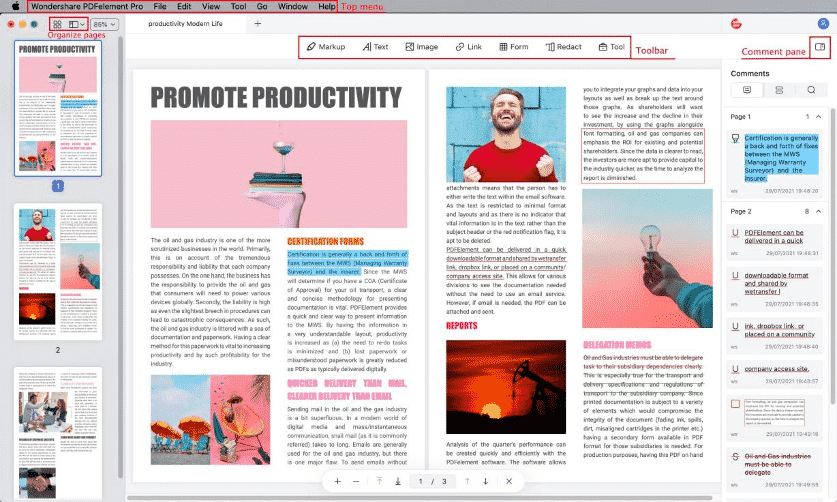
The first step is to add comments to the PDF. Launch PDFelement for Mac 8.5 and you will see the “Markup” tab. Click that and select “Sticky Note.” Then click on the page where you want to add a sticky note comment. Double-click on the yellow comment area when you are ready to enter content.
The second step is to mark the PDF text. The trick is to click “Highlight/Strikethrough/Underline/Squiggly” and select the text you want to mark.
The third step is to stamp the PDF document. Click “Markup” and click “Stamp.” Then you will activate a popup window containing various kinds of stamps that you can choose from. By the way you can also create custom stamps. Meanwhile, to add other elements such as a signature, you can click “Markup” again and select the “Signature” icon.
Want to see what your document will look like once you’re done annotating? You can use the Preview feature.
Wondershare PDFelement is one of the best PDF editors in 2021
Wondershare PDFelement is one of the most complete solutions for anyone looking to open, manage, annotate and edit PDF files on iPhone, iPad or Mac. It’s also equipped with infamous digital documents with features like character recognition, form filling, advanced sharing and more. For your info, recently, Wondershare released a new version of PDFelement for Mac with a series of new features, making the suite even more complete. The new version is Wondershare PDFelement for Mac 8.5. You must give it a try!
For starters, it’s much easier to sync your activity across all your devices with cross-platform support: just sign in with your Wondershare account on any iPhone or iPad and you’ll have immediate access to all your files, notes and edits.
The software also gained 12 new languages, and a number of other new features: we now have support for cloud services (such as iCloud, Dropbox, Google Drive and OneDrive, in addition to FTP servers), a more powerful file search and a built-in file compressor. iOS Dark Mode is also supported, which follows your global system preference. On the iPad, specifically, the app gained support for Apple Pencil and iPadOS features: you can open the app in Split View or Slide Over, as well as drag files to/from PDFelement, making the job even simpler and faster. You can also open two different instances of the app so you can view and edit two PDFs at the same time.
What’s more, PDFelement’s features continue to ride the wave of the segment: you can gather your files from different sources and filter them however you want. You can also create and compress PDFs (including with a character recognition feature, for scanned documents), as well as edit your text, annotate it (with scribbles, digital notes, free drawings and more) and fill/sign forms digitally. You can also password protect your files, make them “uneditable” and distribute them through your favorite cloud service. PDFelement can be downloaded from the App Store, and its free version brings access to some of the app’s features; to unlock all its powers, you need to subscribe to PDFelement — you can also opt for subscriptions that cover other platforms, such as macOS. If you are a Mac user, you can get PDFelement for Mac 8.5 now! Hopefully, this post was helpful.