
When a boot partition or system partition gets lost or deleted, your computer won’t start. As a result, the entire PC data becomes inaccessible. In such a situation, you need to look for missing partitions from the computer’s storage drive and salvage data. In this blog, we’ll share a step-by-step process to recover lost partitions by using bootable data recovery software. We’ll also share the best way to fix the Windows boot issue. But before moving forward, let’s know the situations that call for partition recovery and what are the indications of partition loss.
Data loss situations that require partition recovery
- Loss of boot or system partition
- Missing storage drive volumes
Indications of partition loss
- When you can?t enter the operating system
- When File Explorer doesn?t show partition or drive letter
- When Disk Management shows the partition as unallocated
Step-by-Step Data Recovery Process
Use a Bootable Data Recovery Software
The data recovery market is flooded with software solutions to revive lost partition. But not all can recover data when your PC fails to boot. In such a scenario, you need a bootable data recovery tool such as Stellar Data Recovery Professional for Windows that starts up a not-booting PC and salvages your lost data. For performing data recovery from an unbootable computer, you need a recovery drive.
Steps to create a recovery drive
- Download and Install Stellar Data Recovery Professional for Windows on a Functional PC
- Connect a USB flash drive of a minimum 8 GB that facilitates as a boot medium.
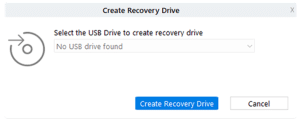
- Run the software, then click the Waffle iconat the top right. Choose the Create Recovery
Drive option.

- Select the USB drive from drop-down list. Click the Create Recovery Drivebutton.
- Click OK on the message box. Wait till the recovery drive creation process completes.
- When the activation window opens, enter the activation key then click Activate.
- Click OKon the ?process completed successfully? message box.
Steps to Recover Lost Partition & Data
- Connect the USB recovery drive to the non-booting PC.
- Turn on the system then press the boot option key, usually F12key (see PC manual).
- Select the USB recovery drive using arrow key and press Enter. The PC boots from the USB drive and launches Stellar Data Recovery Professional.
- On Recover Fromthe screen, select the Can?t Find Drive option then click Scan.
- Select the internal storage drive, toggle on Extensive Search, and then click Search. The software lists all partitions on the drive.
- Select a partition then click Scanto search recoverable data from the lost partition.
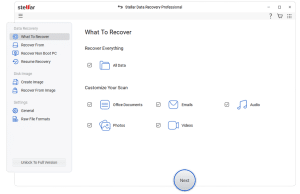
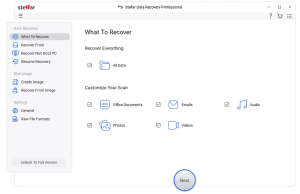
- Preview and recover the selected scanned items to an external backup drive.On Select What To Recoverscreen, specify the type of data then click Next.
- On Recover Fromthe screen, select the Can?t Find Drive option then click Scan.
- Select the internal storage drive, toggle on Extensive Search, and then click Search. The software lists all partitions on the drive.
- Select a partition then click Scanto search recoverable data from the lost partition.
- Preview and recover the selected scanned items to an external backup drive.
Fix Windows Boot Issue
After backing up your data from the non-booting PC by using bootable data recovery software, proceed to fix the Windows boot issue. The steps are as follows:
- Create Windows USB installer media by using a media creation tool.
- Connect the installer media to the non-booting PC.
- Turn on the system and press the boot option key (usually F12) continuously.
- From boot options, select USB installer media using arrow keys then press Enter.
- Choose a language then click the Repair Your Computer link. The PC enters Windows Recovery Environment (WinRE).
- On the Choose an option screen, select Troubleshoot > Advanced options > Startup Repair.
- Let the tool scan your PC for problems and fix any boot issues.
- If the issue is not resolved, go to Troubleshoot > Reset this PC.
- Perform the instructions as prompted to reinstall Windows on your PC.
- By using the external backup drive, restore the backed-up data to the revived PC.
Conclusion
By using Stellar Data Recovery Professional for Windows software, you can recover a partition from a non-booting Windows PC. First off, create a USB recovery drive then connect the drive to a crashed or unbootable PC. Next, power on the PC and let it boot from the flash drive. Use the data recovery software to search for lost partitions and recover inaccessible data. Subsequently, resolve system boot issues by using the Startup Repair option. In case the issue persists, reinstall Windows on your PC.