

The moment your phone breaks down, you feel as though you have lost everything in it. Your photos and essential contacts feel unsafe when the screen stops working. A lot of users panic and start doing random fixes that make the situation difficult. Yet, a broken phone does not always mean your data is lost forever.
Alongside that, recovery works best when you follow a calm and safe order. So, this guide explains what to do first and what actions to avoid. It also shows when tools like Dr.Fone Android recovery software can help recover deleted data.
Part 1: Assess Android Phone Damage Safely Before Data Recovery
Before attempting recovery, users should first understand the exact condition of the phone. Checking whether the device powers on helps separate hardware damage from screen issues. Moreover, a cracked display may look severe while internal storage remains accessible. Plus, avoid restarting multiple times or installing apps that may overwrite hidden data.
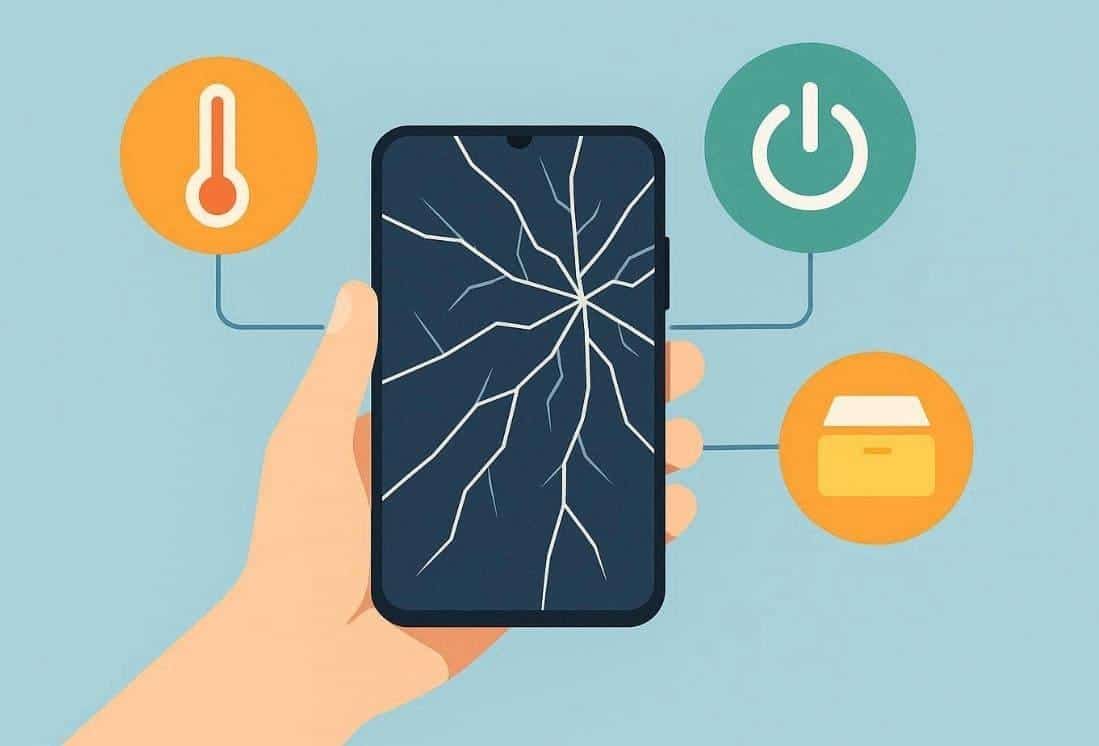
In case your device heats up, you should stop using it straight away. Keeping the device stable increases the chance of a successful broken Android data extraction later. When unsure, avoid any physical repair and focus only on confirming the device’s state. This careful assessment prevents further issues and keeps your stored data unharmed.
Part 2: Recover Data from a Broken Android Phone Using Backups and Cloud Sync
Before using any tools, check if your data already exists in backups or cloud storage. The given sections are the safest way to start when learning how to recover data from broken phone:
1. Look for Synced Account
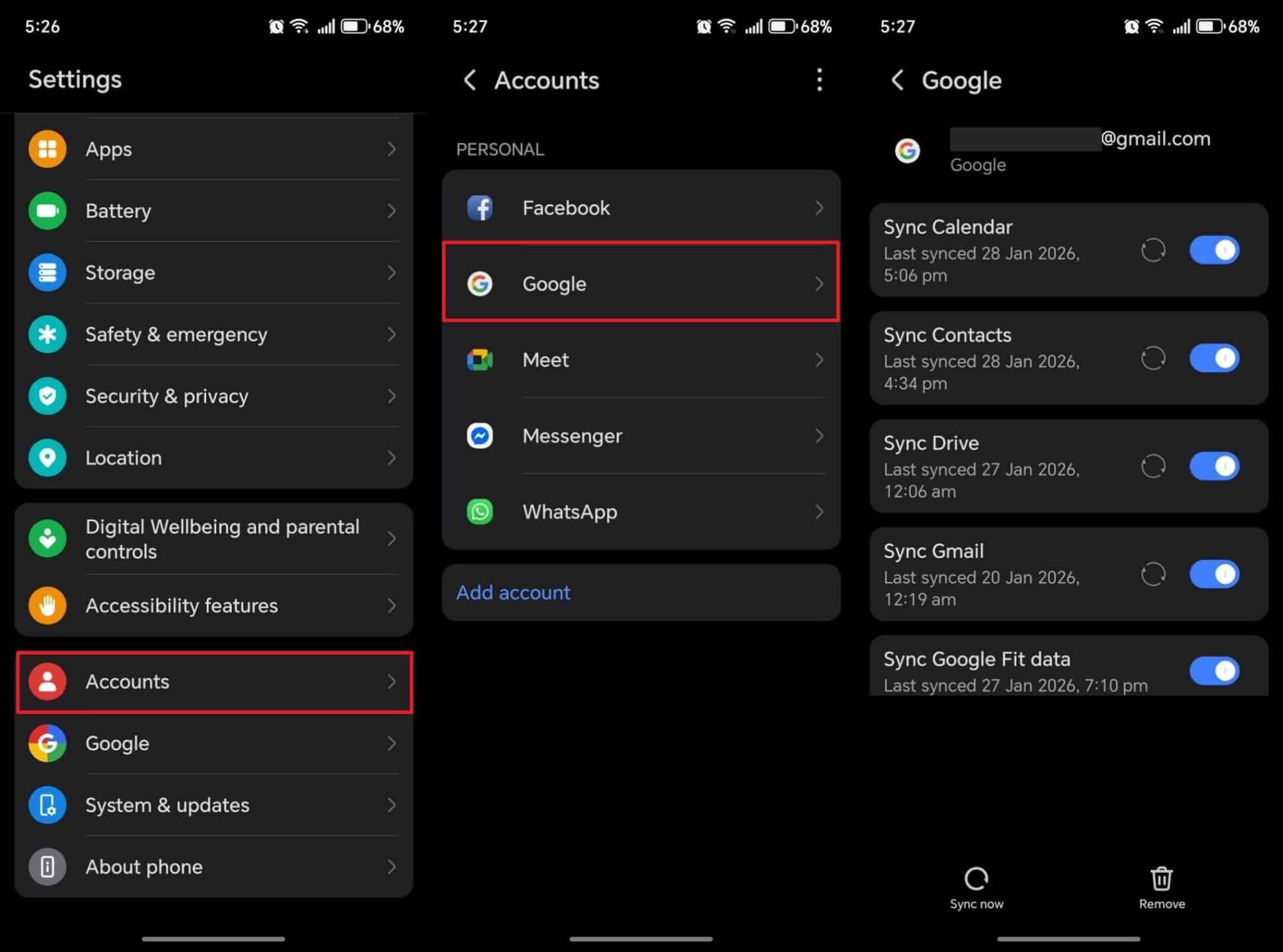
A synced Google account can be a strong starting point for broken Android data extraction. It stores various data types, including contacts and photos, online for easy recovery. By signing in from another device, you can access those synced files. This option avoids physical handling of the phone, reducing risks of further internal harm. Thus, review the given instruction below to check your synced account on your working phone:
Instructions. Open your working phone’s “Settings” and go to the “Accounts” section. Next, select “Google” to access the same account you logged into on your damaged phone. Turn on the sync switch for the specific data you want to recover.
2. Restore Google Backup
Google Backup also makes it simple to restore your data when the original device fails. It automatically keeps copies of essential files and phone settings online. Users exploring how to recover data from broken phone can access their backup using a new device. With a stable connection and a correct Google account, recovery becomes quick and safe. So, you can follow the steps below to recover data via backup:
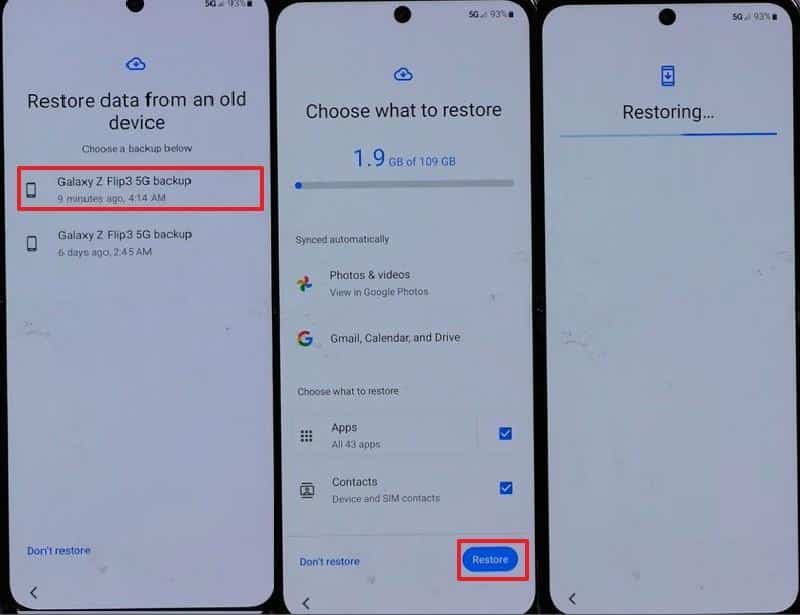
Step 1. While setting up your new phone, tap “Next” on the “Copy Apps & Data” screen. Afterward, opt for “Can’t Use Old Device” to log in to the same Google account credentials.
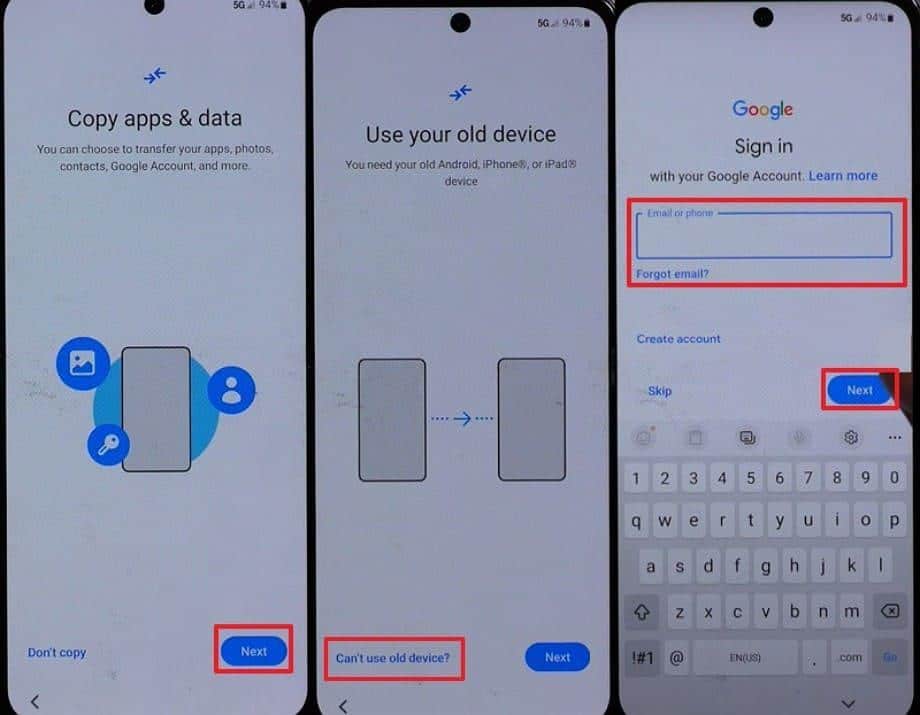
Step 2. Once the available backups are displayed, you need to select the latest backup. Next, choose the content you want to recover and tap “Restore” to complete the process.
Part 3: What to Do If the Screen Doesn’t Work but the Phone Still Powers On
A nonworking screen does not always block access to internal Android storage. If the phone powers on, data transfer remains possible through safe connection methods. Moreover, stable links help computers detect devices for controlled broken Android data extraction. So, this section explains secure options before touching advanced tools or risky repair methods:
Situation | What to Do | Why It Helps |
The screen is black, but the phone turns on | Connect the phone to a computer using the original USB cable | Allows the system to recognize storage without screen interaction |
Touch not working | Try mouse support with the USB OTG adapter | Helps control the phone interface without using touch |
Phone detected by the computer | Check internal storage folders carefully | Enables manual copy of photos, videos, and documents |
Charging but no display | Avoid restarting repeatedly | Prevents accidental data overwrite or system instability |
Unstable connection | Use another cable or USB port | Improves detection and reduces data transfer interruption |
Part 4: When to Use Broken Phone Data Recovery Software on Android
When backups or cloud syncs fail, software recovery becomes the next safe option. These tools are reliable for complex damage cases where normal access is lost. Users searching for how to recover data from broken phone can depend on them. Below are key reasons and situations where recovery software offers higher success chances:
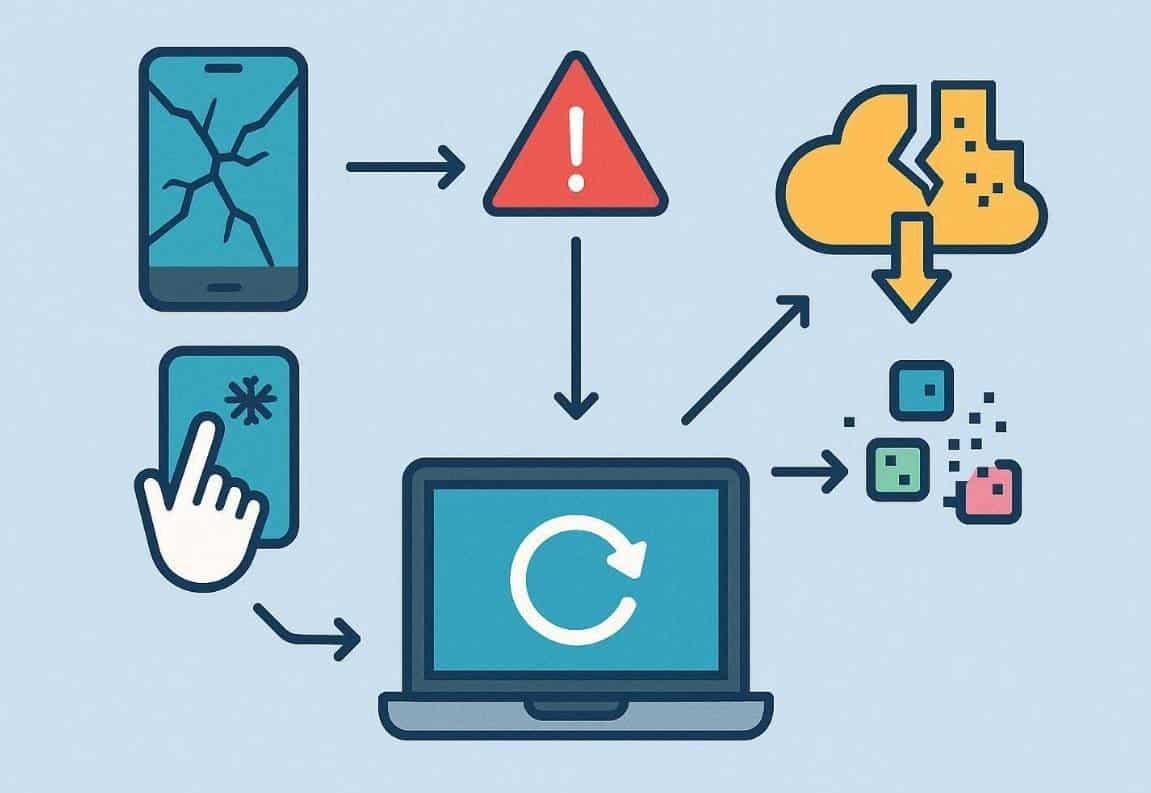
- Severe Damage: Physical damage may corrupt the interface, blocking access to stored data. Specialized recovery tools help extract recoverable files without hassle.
- System Crash: When the Android system stops responding, software recovery restores readable partitions. It bypasses boot errors and locates accessible files without requiring device interaction.
- Unresponsive Touch: A dead touchscreen makes manual recovery almost impossible. With software tools, files can be transferred via a PC using a secure connection.
- Incomplete Backup: If cloud sync fails, the software provides an alternative recovery. It scans leftover data segments, locating files skipped by backup utilities.
- Data Corruption: Improper removal or damage may also corrupt internal memory. Yet, programs analyze partitions and rebuild damaged structures to restore missing data.
Part 5: Use Dr.Fone for Structured Broken Android Data Recovery
When your Android phone is broken or unresponsive, reliable recovery becomes essential. Relying on random tools risks overwriting valuable files and complicating retrieval further. That’s where Dr.Fone – Data Recovery (Android) offers a structured and trusted solution. It supports recovery across more than 6000 Android models to ensure brand‑wide compatibility. With Dr.Fone Android recovery software, you can scan lost files and preview recoverable content.
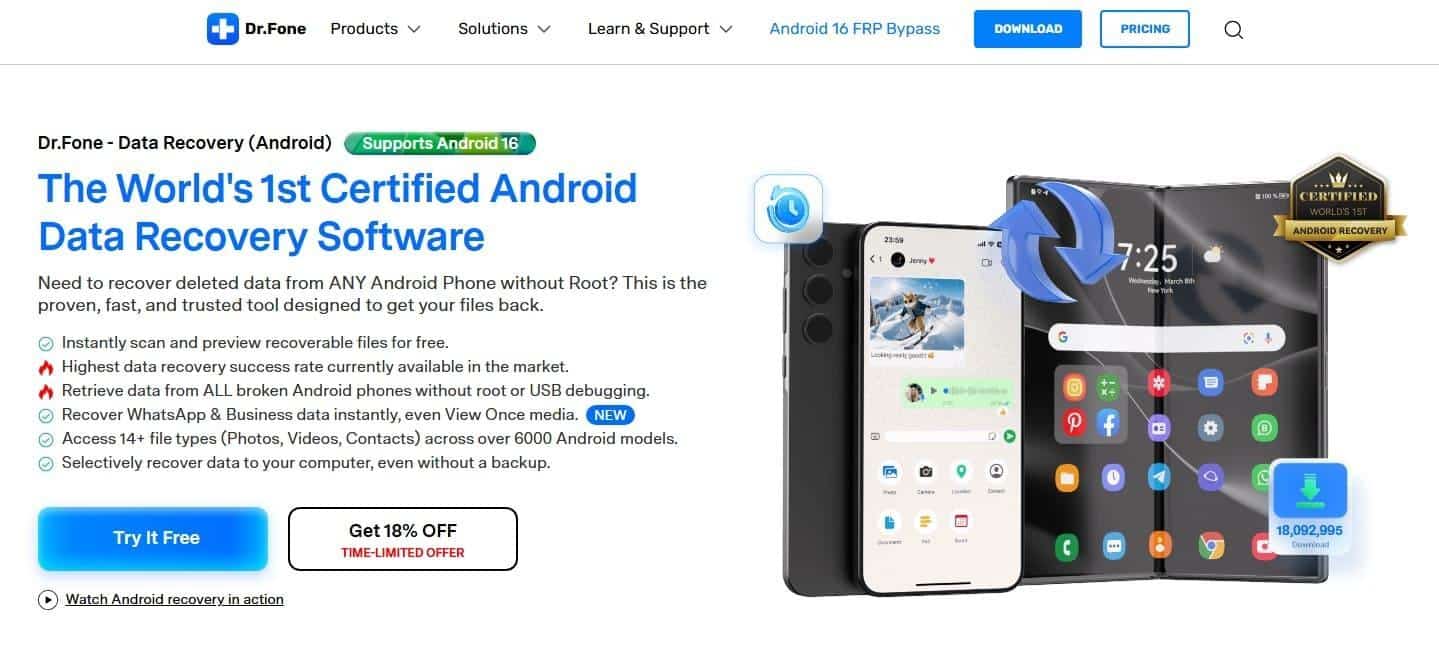
The program enables you to recover 14+ types of data, including contacts and apps. You can even perform broken Android data extraction without enabling USB debugging or rooting. Plus, real‑time preview helps recover only the required data, saving storage space. It also restores Google Drive backups, avoiding full factory resets or overwriting existing data.
Key Features
- Deep Scanning: Performs in‑depth scans of internal storage to locate hidden or deleted files.
- WhatsApp Restore: Recovers WhatsApp chats and attachments from device storage.
- Computer Export: Saves recovered data directly to your computer for long‑term backup.
Detailed Guide for Structured Broken Android Data Recovery via Dr.Fone
You need to adhere to the guide given below to learn how to recover data from broken phone:
Step 1. Launch Broken Phone Recovery Mode
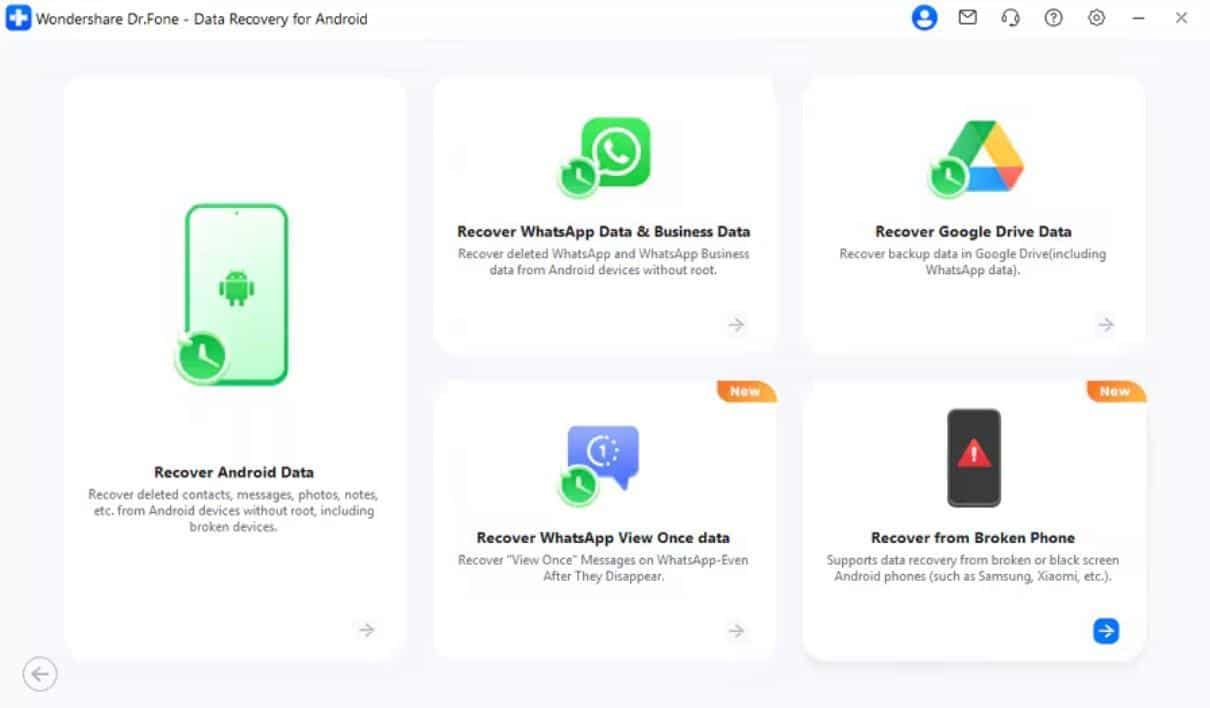
Navigate to the “Toolbox” tab upon running Dr.Fone and select “Data Recovery.” Choose “Android” as your device and click “Recover from Broken Phone” to start.
Step 2. Specify the Phone’s Condition
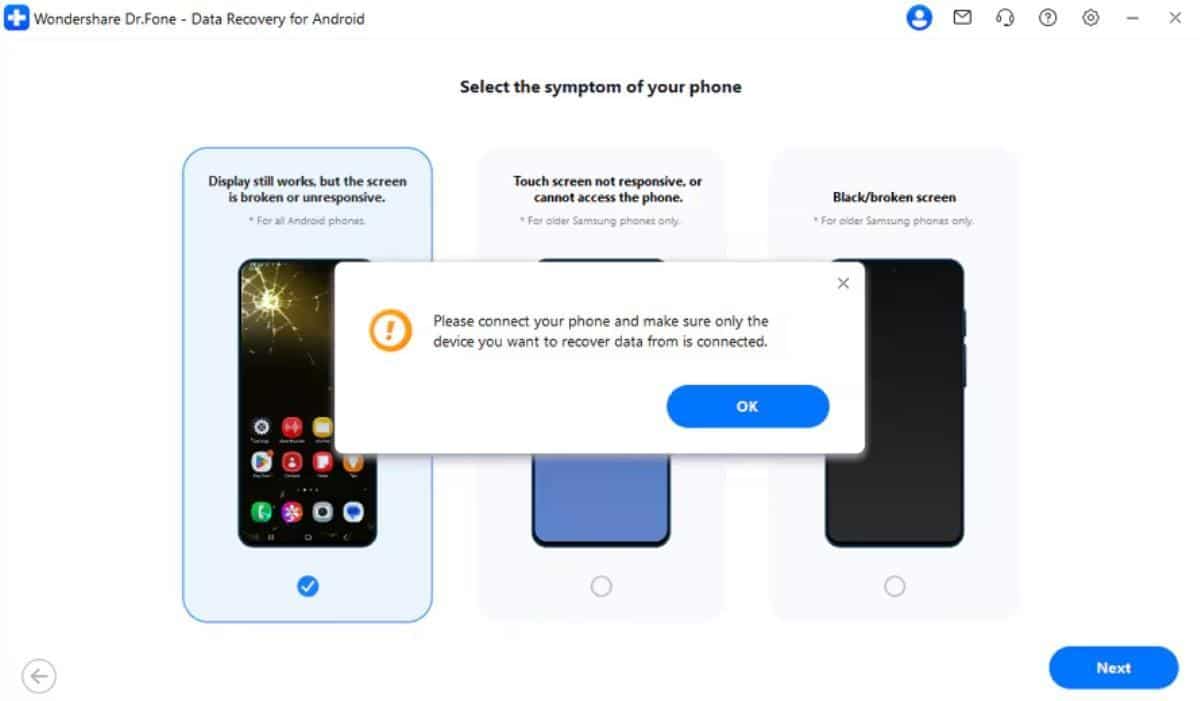
Opt for “Display Still Works, But the Screen Is Broken or Not Responding.” Press “Next” to connect your device to the PC and click “OK” on the given prompt.
Step 3. Recover Data from the Broken Phone
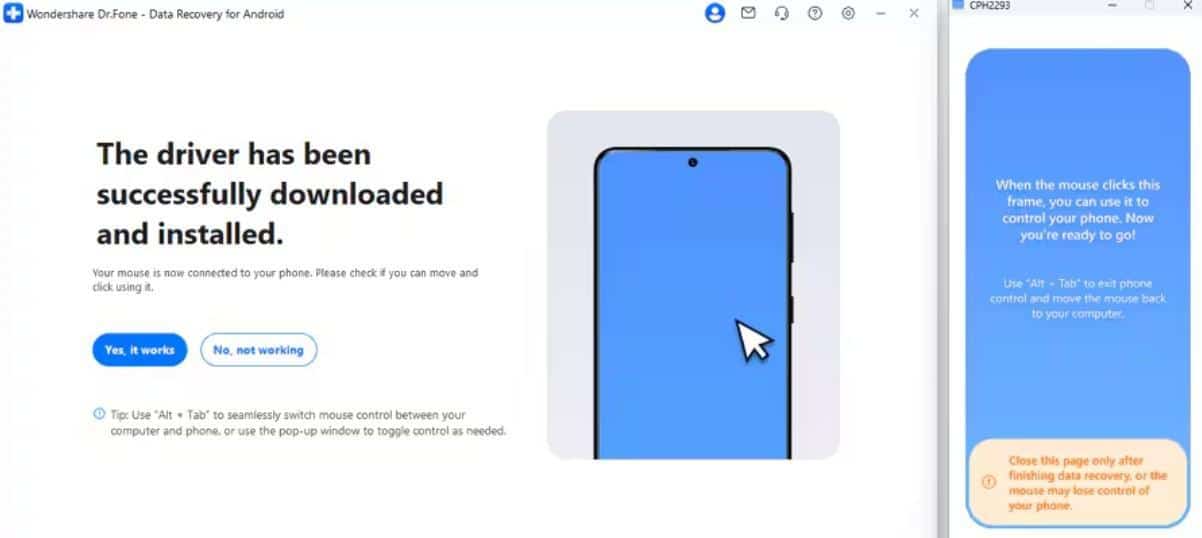
Upon doing this, allow the tool to install the required drivers automatically. When prompted, click “Yes, It Works” to restore your important files.
Conclusion
To sum up, a broken Android phone does not mean all your data is gone forever. By checking damage first and using cloud backups, you save most files with some effort. When those steps fail, recovery software handles tough cases like an unresponsive touch. Follow this order to avoid mistakes and protect your data. For reliable help in complex situations, use Dr.Fone Android recovery software as your trusted final step.