

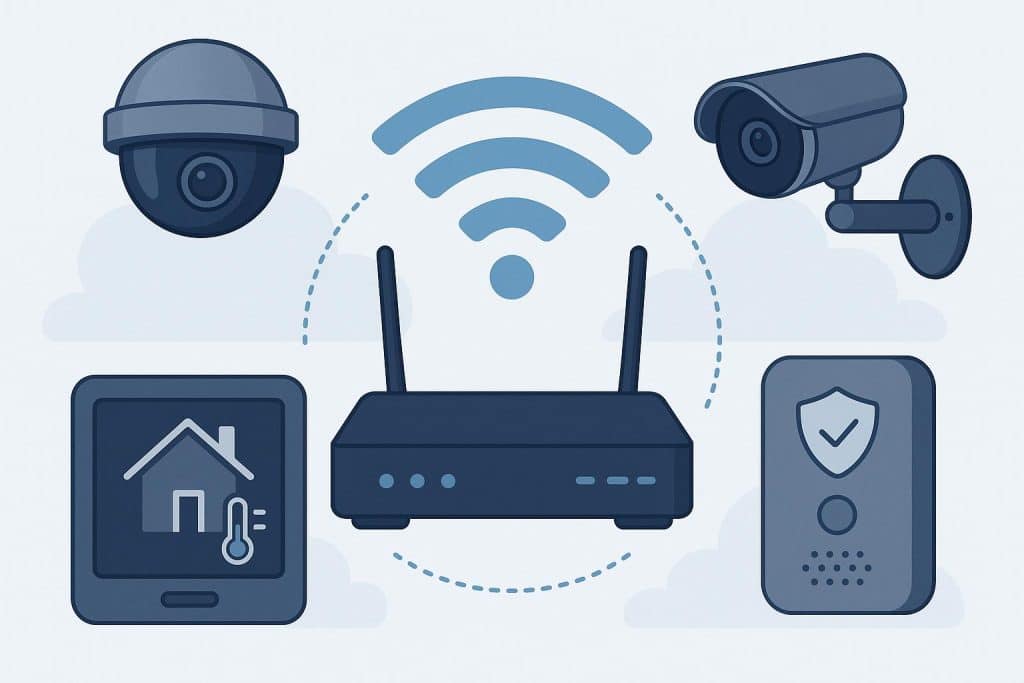
Your home security cameras and smart devices depend entirely on a stable broadband connection. However, most installations fail because of poor network planning, not faulty hardware. A camera placed too far from your router, the wrong frequency selection, or insufficient upload bandwidth will cause dropped feeds, buffering, and gaps in your security coverage.
This guide walks you through bandwidth calculations, router placement, frequency selection, and network optimisation to keep your CCTV and smart-home security running reliably.
Understanding Bandwidth Requirements for Security Cameras
Your upload speed matters more than download speed for security cameras. The cameras send footage to the cloud or your phone, which uses upload bandwidth.
HD cameras running at 720p typically require about 1–2 Mbps of upload bandwidth per camera. 1080p (Full HD) cameras generally require 2–5 Mbps, depending on frame rate, bitrate, and compression. Cameras using newer codecs like H.265 usually consume less bandwidth than those using H.264. Higher-resolution cameras, such as 4K, require more bandwidth overall, although modern compression technologies can help reduce the data transmitted.
Calculate total bandwidth by multiplying the number of cameras by their individual requirements, then add 20–30% overhead for mobile streaming and remote access. Four 1080p cameras using H.265 roughly require 12–13 Mbps upload. Check your current upload speed with a speed test; if it falls short, your feeds will lag or drop during peak usage hours.
Router Placement and Wi-Fi Frequency Selection
Place your router in a central location where all cameras can reach the signal without obstruction. Cameras too far from the router work harder to maintain a connection, which drains battery life in wireless models and causes buffering in wired ones.
The 2.4 GHz band offers longer range and better wall penetration, essential for cameras mounted outdoors or in corners far from your router. It handles interference from microwaves and other household devices but provides adequate stability for most security setups. The 5 GHz band delivers faster speeds with less interference but struggles to penetrate exterior walls and doors.
For video doorbells and outdoor cameras, use 2.4 GHz. For indoor cameras with a clear line of sight to the router, 5 GHz works well. A dual-band router lets you assign devices to the appropriate frequency: security cameras on 2.4 GHz and streaming devices and phones on 5 GHz. This prevents bandwidth congestion and ensures uninterrupted camera feeds even when someone streams a movie in another room.
Network Optimisation for Smart Home Security
Step 1: Enable Quality of Service (QoS) on your router
QoS settings let you prioritise camera traffic over less critical devices. Most routers label this feature as ‘QoS’, ‘Traffic Control’, or ‘Bandwidth Management’. Assign video traffic the highest priority to prevent buffering when multiple devices use the network simultaneously.
Step 2: Secure your network with WPA3 or WPA2-PSK
WPA3 is the most secure protocol for Wi-Fi 6 devices. Use a password at least 12 characters long with uppercase letters, lowercase letters, numbers, and symbols. Avoid personal information or dictionary words.
Step 3: Consider a mesh system for larger homes
Mesh Wi-Fi eliminates dead zones by placing multiple access points throughout your home. Each node communicates with the others to provide consistent coverage without requiring cameras to reconnect as you move between zones.
Step 4: Create a separate network for IoT devices
Use your router’s guest network feature or set up a VLAN to isolate cameras and smart home devices from your main network. This limits security risks if a device is compromised.
Step 5: Update firmware regularly
Router and camera manufacturers release updates to patch security vulnerabilities and improve performance. Enable automatic updates or check monthly for new firmware versions.
Troubleshooting Common Wi-Fi Issues
Weak signal or dead zones
Walk through your home with a smartphone connected to your Wi-Fi. Note where the signal weakens or drops completely. Avoid placing cameras in these areas or install a Wi-Fi range extender to boost coverage.
Cameras disconnecting frequently
Check if your upload speed meets the combined requirement of all cameras. Run a speed test during peak hours. If speeds fall below your plan’s advertised rate, contact your service provider. Consider upgrading to a plan with a higher upload bandwidth.
Lagging or pixelated feeds
Temporarily reduce camera resolution to confirm whether bandwidth is the issue. If feeds improve at lower quality, your connection cannot handle the current load. Enable H.265 compression if your cameras support it; this halves bandwidth usage without sacrificing quality.
Too many devices on one network
Dedicated routers for security cameras prevent bandwidth competition with phones, laptops, and streaming devices. Alternatively, use QoS to guarantee camera traffic gets priority during congestion.
A well-configured broadband connection keeps your CCTV and smart home security operational 24/7. Proper bandwidth allocation, strategic router placement, and network optimisation eliminate the gaps that make most security systems unreliable. Whether you run two cameras or ten, these setup steps ensure your feeds stay live when you need them most. Airtel AirFiber delivers the upload speeds and network stability required for home security setups, with unlimited data and coverage designed for connected homes.